Remote Desktop Connection Workspace Setup Steps (Mac)
Go Link: http://go.augsburg.edu/rdpnewmac
- Looking for Windows Tutorial?
- Looking for Windows Remote Lab tutorial?
- Looking for Chromebook Tutorial?
Download the current Remote Desktop Connection app:
Launch the application, Microsoft Remote Desktop (found in your Finder, Applications folder)
(Finder icon) (Remote Desktop icon)


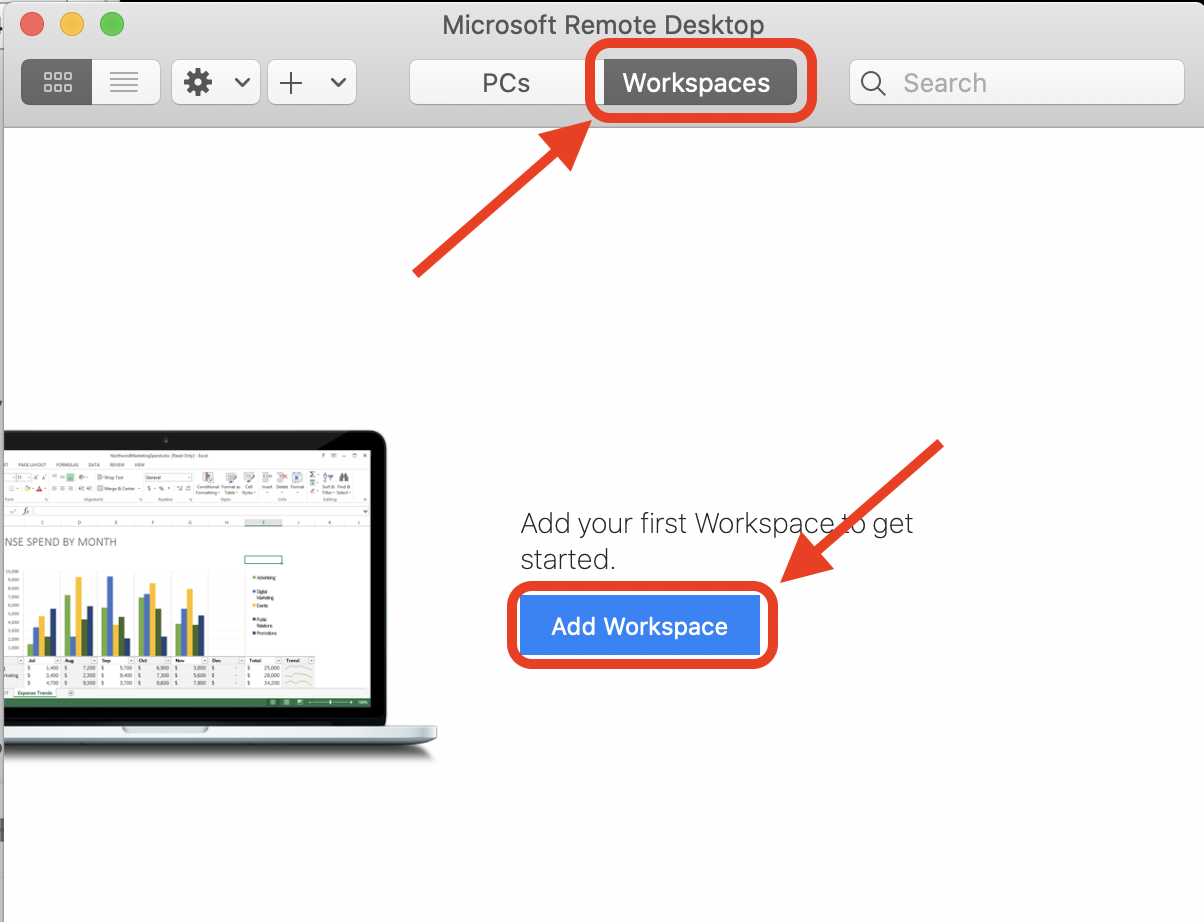
Click on the Workspaces tab:
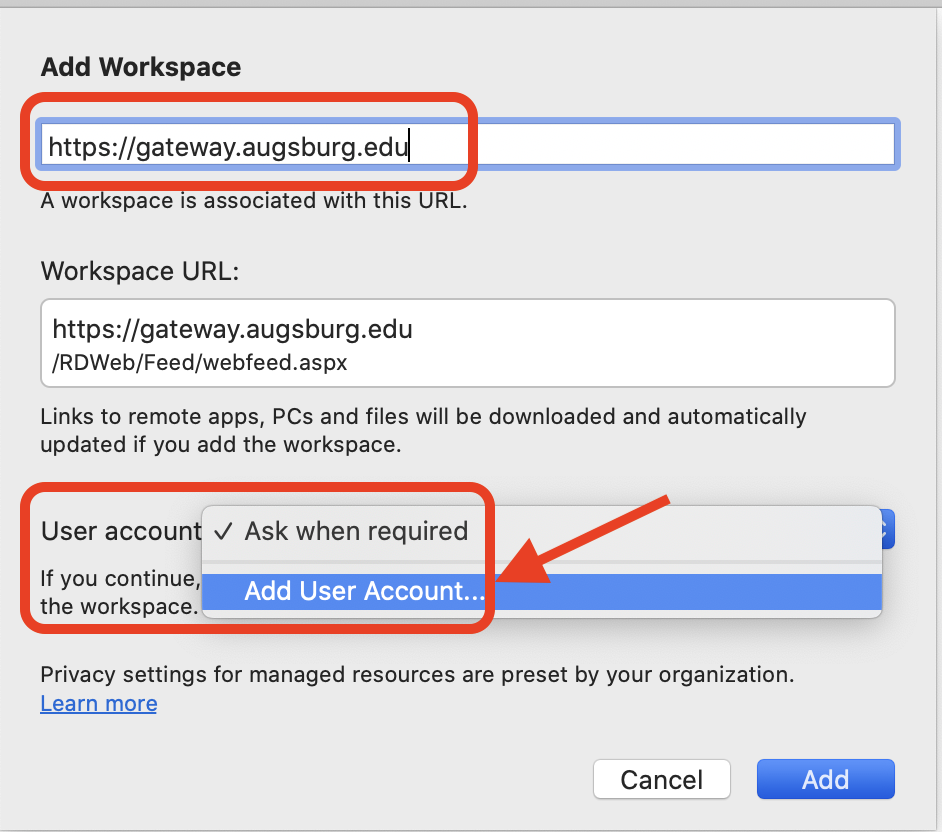
Type in https://gateway.augsburg.edu for the Workspace URL then choose “Add User Account” for User account:
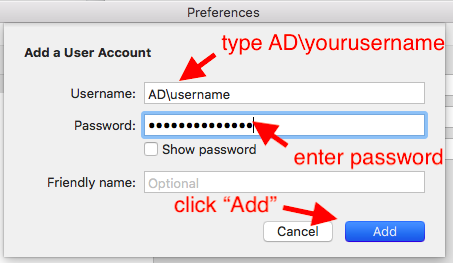
Type in ad\username but with your username
Type in your Augsburg password. Click “Add”
Select your user account from the “User account” field:

Double-click either to start:
- Remote Labs - same software as in on-campus computer labs (SPSS, HyperResearch, etc)
- Remote Work Desktop - includes Agresso, etc (Requires Multi-Factor Authentication)

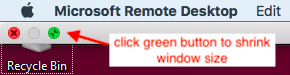
The remote desktop will open in Full Screen. To get back to your Apps, either push your mouse cursor up to the top of your screen to reduce the window size:
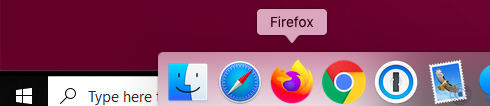
Or, to the bottom of your screen, to find other apps:
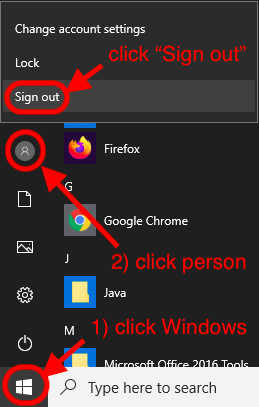
When you are done using Remote Desktop, click the Windows button, then the person icon, and choose “Sign Out”